
Share a GM Digital Car Key: Apple, Google and Samsung Wallet Steps
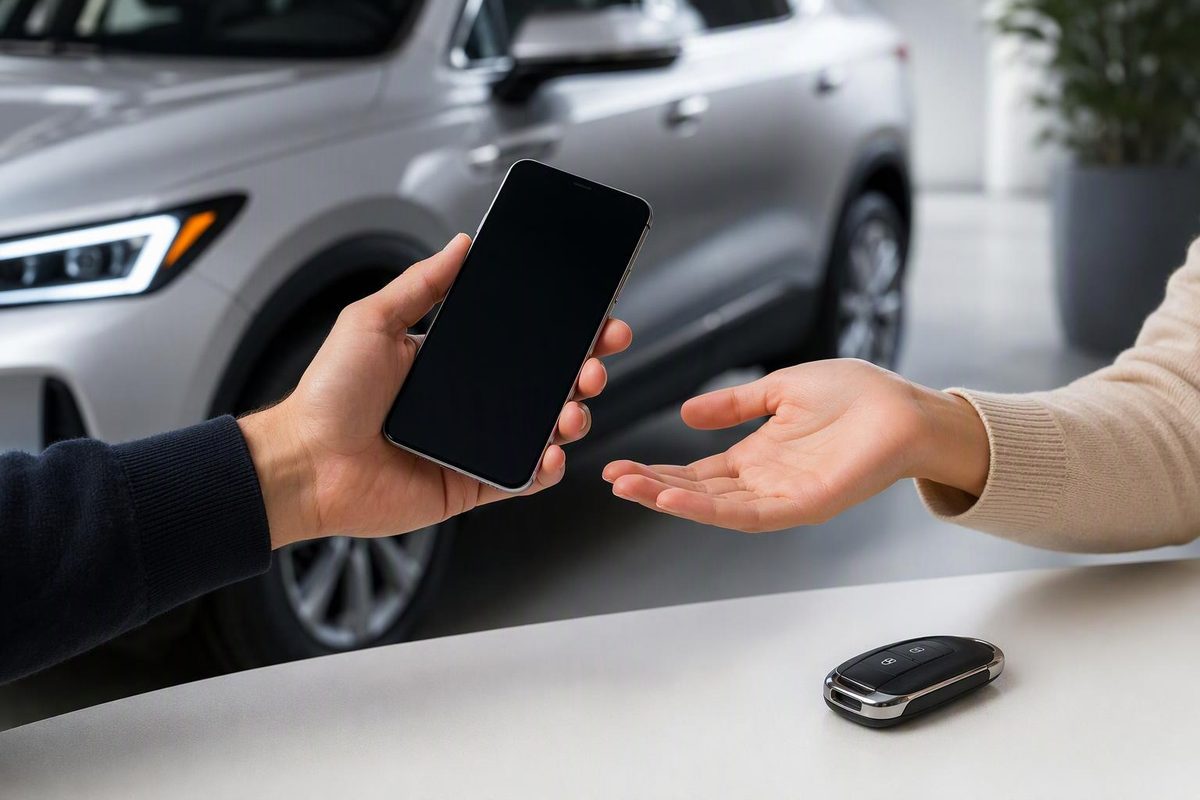
Share GM Digital Key from Apple, Google or Samsung Wallet. Check eligibility, set permissions, activate the recipient’s key and revoke access.
Open your phone’s wallet, select your GM vehicle key, and use its Share control. Choose the recipient’s access permissions, send the invitation, and have them complete activation on their compatible device. Sharing happens in the wallet—do not give someone your GM account password. Cadillac’s Digital Key guide describes the wallet-sharing controls.
Before sharing: confirm the vehicle and both phones
These instructions apply to GM’s wallet-based Digital Key, not simply the lock or remote-start buttons in a vehicle app. Cadillac explains that a Digital Key can authorize driving without the fob; its mobile-app remote commands cannot. Cadillac’s Digital Key guide explains the distinction.
As of October 26, 2026, GM’s announced rollout covers:
| Rollout phase | Eligible vehicles |
|---|---|
| September–mid-October 2026 | 2025–2027 Cadillac LYRIQ, 2026–2027 OPTIQ and 2027 VISTIQ |
| Scheduled for December 2026 | 2026–2027 Chevrolet Tahoe and Suburban; 2026–2027 GMC Yukon and Yukon XL; 2027 Cadillac Escalade, Escalade IQ/IQL and CELESTIQ |
A model on the December list is not necessarily ready yet. GM says owners receive a notification in the vehicle app’s What’s New section when Digital Key becomes available. Source: GM rollout schedule.
The current regional support is for the U.S. and Canada; Cadillac lists attempts outside those regions as a possible cause of a “Region isn’t supported” error. Source: Cadillac troubleshooting.
Both the owner and recipient need a GM-compatible ultra-wideband (UWB) device. Merely having a wallet app installed is not enough. Check the exact model with our GM Digital Key phone compatibility guide. Cadillac says recipients do not need the myCadillac app to receive a shared key, but they do need a compatible device. Source: Cadillac.
Stop if the owner’s key is not already in the wallet. First sign into the vehicle’s mobile app and follow its setup prompts while inside the OnStar-connected vehicle with the physical fob nearby. That is initial owner pairing, not recipient sharing. GM setup instructions.
Share from the wallet that holds your key
Apple Wallet
- On your iPhone, open Wallet and select the vehicle key.
- Tap the Share icon.
- Name the shared key and select the permissions offered.
- Enable an activation code if offered; some keys require one automatically.
- Choose the recipient and delivery method, such as Messages or AirDrop.
- Tap Continue, authenticate, and finish the onscreen steps.
- If a code appears, give it to the recipient. Apple recommends sharing it in person or over the phone for maximum security.
The recipient must complete the invitation’s instructions to add the key. Available sharing features depend on the vehicle. Apple’s car-key sharing instructions.
Google Wallet
- Open Google Wallet and select your vehicle key.
- Tap Share at the bottom of the key screen, as described in Cadillac’s instructions.
- Review the access settings shown for your vehicle.
- Choose the recipient, name the shared key, and send its link through your chosen app.
- Have the recipient open the link and complete the wallet’s activation instructions.
Google notes that activation can require a code, a physical fob or the owner’s digital key, depending on the vehicle. Follow the actual prompts rather than assuming the invitation alone makes the key ready. Cadillac’s Share-button instructions and Google’s sharing and activation guide.
Samsung Wallet
Cadillac’s GM-specific instructions describe this path:
- Open Samsung Wallet and select the vehicle key.
- Tap the sharing symbol at the top, described as a sideways V.
- Select Share key, then Set options and share.
- Enter the recipient’s name, select access options, and require a first-time security code if offered.
- Choose a delivery method and finish the prompts.
A QR-code sharing option may also appear. Cadillac says QR sharing uses preset access options that cannot be changed, so use the configurable path when you need to control permissions. Source: Cadillac’s wallet-sharing instructions.
Have the recipient open the invitation and follow Samsung Wallet’s registration instructions. They may need to complete Samsung Wallet setup first. Samsung’s shared-key acceptance instructions.
Check access before handing over the car
Unlocking is not proof that the recipient can drive. Cadillac confirms that an owner can issue a lock/unlock-only key that does not permit starting. Select driving access only when that is what you intend. Do not assume generic wallet options for restricted driving or speed limits are supported by your GM vehicle. Cadillac’s shared-key permissions.
Before the recipient leaves:
- Confirm their wallet shows the key as ready, with activation complete.
- Test locking and unlocking.
- If driving is authorized, test starting with all other authorized phones, watches, fobs and key cards outside the vehicle’s detection range so they cannot mask a failed shared key.
- Keep a physical backup available with you or a helper during testing, rather than leaving it inside the car.
If sharing fails—or you need to revoke it
For “Can’t share key,” check both devices’ UWB compatibility first. Cadillac identifies a non-UWB device on either side as a cause. For an unfinished invitation, check internet connectivity and complete any requested activation; Google says a “car key isn’t ready yet” message means it is not usable yet. Cadillac troubleshooting and Google troubleshooting.
To revoke access, select the recipient, not your own owner key:
- Apple: Wallet → vehicle key → People button → recipient → Stop Sharing.
- Google: Vehicle key → Manage shared keys → user → Remove user.
- Samsung: Key details → recipient → Cancel Key, then authenticate and check the termination status.
These are the respective Apple, Google and Samsung documented procedures. Google warns revocation may take time or require a vehicle interaction; verify completion rather than assuming it is instant.
If a device is lost or stolen, contact OnStar for help deactivating its GM Digital Key. Apple also warns that marking your own iPhone as lost does not turn off keys you have shared with others. GM’s lost-device guidance; Apple’s shared-key warning.